Skip to content
Learn how to host a WordPress site with this step-by-step guide. Choose the right hosting, install WordPress, and launch your website easily.
How to Host a WordPress Site
If you want to host a WordPress site, you’re making one of the best choices for building a professional website. WordPress powers over 40% of all websites worldwide because it is flexible, beginner-friendly, and suitable for blogs, business websites, online stores, and portfolios.
Many beginners believe hosting a website is difficult, but modern web hosting providers have made the entire process simple. Most companies offer one-click WordPress installation, automatic updates, free SSL certificates, and daily backups.
In this guide, you’ll learn everything you need to know to host a WordPress site, including choosing the right hosting provider, registering a domain, installing WordPress, securing your website, and optimizing it for performance.
What Does It Mean to Host a WordPress Site?
Hosting a WordPress site means storing your website files, images, databases, and content on a web server connected to the internet.
Whenever someone visits your domain name, the hosting server delivers your website to the visitor’s browser.
Without web hosting, your WordPress website cannot be accessed online.
A complete WordPress website requires:
- A domain name
- Web hosting
- WordPress installation
- SSL certificate
- Database
- Website files
Why Choose WordPress?
WordPress has become the world’s most popular Content Management System (CMS) because it offers numerous advantages.
Some of its biggest benefits include:
- Beginner-friendly interface
- Thousands of free themes
- More than 60,000 plugins
- SEO-friendly structure
- WooCommerce support
- Mobile-responsive designs
- Large community support
- Easy customization
Whether you’re creating a personal blog or an enterprise website, WordPress can handle almost every project.
Things You Need Before Hosting a WordPress Site
Before you host a WordPress site, gather these essentials.
1. Domain Name
Your domain is your website address, such as:
example.comChoose a domain that’s:
- Easy to remember
- Short
- Brandable
- Easy to spell
2. Web Hosting
Your hosting provider stores your website online.
Popular hosting options include:
- Shared Hosting
- VPS Hosting
- Cloud Hosting
- Managed WordPress Hosting
- Dedicated Server
For beginners, shared hosting is usually the most affordable option.
3. SSL Certificate
SSL encrypts your website and displays HTTPS.
Benefits include:
Many hosting providers include free SSL certificates.
Types of WordPress Hosting
Choosing the right hosting depends on your website size and budget.
Shared Hosting
Best for:
- Personal blogs
- Small businesses
- Beginners
Pros
- Affordable
- Easy setup
- Beginner-friendly
Cons
- Shared server resources
- Limited performance
VPS Hosting
Best for:
- Growing websites
- Medium businesses
Pros
- Better performance
- Greater control
- More resources
Cons
- Requires basic server knowledge
Cloud Hosting
Ideal for websites expecting fluctuating traffic.
Benefits include:
- High uptime
- Scalability
- Fast loading
- Better redundancy
Managed WordPress Hosting
Designed specifically for WordPress.
Features include:
- Automatic updates
- Security monitoring
- Daily backups
- Performance optimization
- Expert WordPress support
Step 1: Purchase Hosting
Select a reliable hosting provider based on:
- Performance
- Support
- Uptime guarantee
- Free SSL
- Free backups
- One-click WordPress installation
- Server location
- Pricing
Avoid selecting hosting solely based on the cheapest price.
Step 2: Register Your Domain
Many hosting companies allow you to register a domain while purchasing hosting.
If you already own a domain, simply point it to your hosting provider by updating the nameservers.
DNS propagation usually completes within a few hours, although it can sometimes take up to 48 hours.
Step 3: Install WordPress
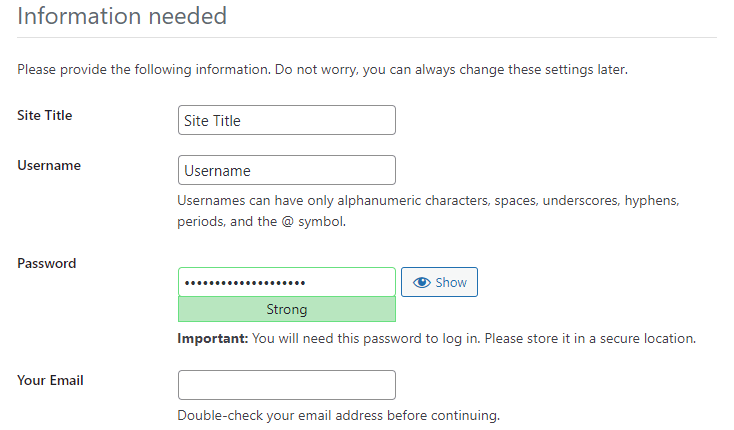
Most hosting companies provide one-click installation.
The installation typically requires:
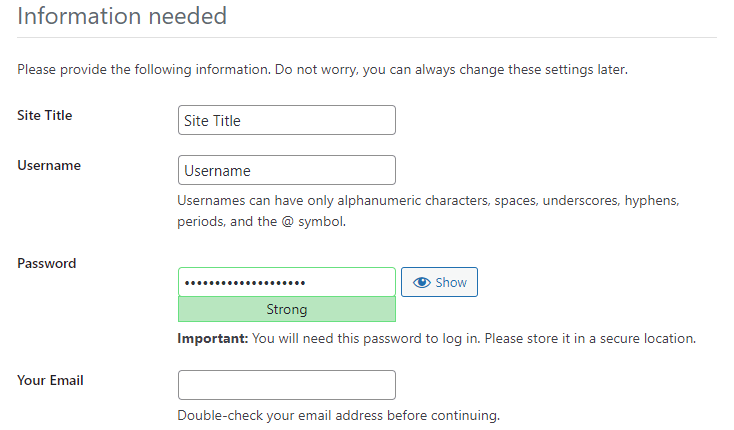
- Website name
- Admin username
- Password
- Email address
After installation, you’ll receive a login URL similar to:
yourdomain.com/wp-adminLog in using your administrator credentials.
Step 4: Configure Basic WordPress Settings
Once logged in, configure essential settings.
Visit:
Settings → General
- Site title
- Tagline
- Time zone
- Email address
Next, visit:
Settings → Permalinks
Choose:
Post NameThis creates SEO-friendly URLs.
Step 5: Install a WordPress Theme
Themes determine your website’s appearance.
When selecting a theme, prioritize:
- Fast loading
- Mobile responsiveness
- SEO optimization
- Regular updates
- Good reviews
Avoid installing unnecessary themes.
Step 6: Install Essential Plugins
Plugins add functionality to WordPress.
Recommended categories include:
Security
Protects your website from hackers and malware.
SEO
Helps optimize pages for search engines.
Creates regular backups of your website.
Improves loading speed.
Contact Forms
Allows visitors to contact you easily.
Install only plugins you genuinely need.
Step 7: Secure Your Website
Security should never be ignored.
Follow these best practices:
- Use strong passwords
- Enable two-factor authentication
- Keep WordPress updated
- Update themes regularly
- Update plugins
- Install security plugins
- Schedule automatic backups
- Remove unused plugins
Step 8: Optimize Website Performance
A fast website improves both SEO and user experience.
Ways to improve speed:
- Enable caching
- Compress images
- Use a CDN
- Minify CSS and JavaScript
- Remove unnecessary plugins
- Upgrade PHP version
- Choose fast hosting
Performance optimization also helps improve Core Web Vitals.
Common Mistakes Beginners Make
Many new website owners experience avoidable issues.
Common mistakes include:
- Choosing poor-quality hosting
- Ignoring backups
- Installing too many plugins
- Using weak passwords
- Skipping SSL
- Not updating WordPress
- Uploading oversized images
Avoiding these mistakes keeps your website secure and fast.
How Much Does It Cost to Host a WordPress Site?
The total cost depends on your requirements.
Typical expenses include:
| Item | Estimated Cost |
|---|---|
| Domain | $10–20/year |
| Shared Hosting | $3–10/month |
| VPS Hosting | $15–80/month |
| Managed WordPress Hosting | $20–100/month |
| Premium Theme | Optional |
| Premium Plugins | Optional |
Many beginners can launch a website for less than $100 per year.
Tips for Long-Term Success
Once your website is live:
- Publish quality content regularly
- Keep software updated
- Monitor website speed
- Check security logs
- Optimize images
- Improve SEO
- Back up your website frequently
- Monitor uptime
Consistent maintenance helps your website grow over time.
Frequently Asked Questions
Can I host a WordPress site without coding?
Yes. Most hosting providers offer one-click WordPress installation, allowing you to build a website without any programming knowledge.
Which hosting is best for beginners?
Shared hosting is usually the best option because it is affordable, simple to manage, and provides enough resources for new websites.
Is managed WordPress hosting worth it?
Yes. If you want automatic updates, enhanced security, expert support, and better performance without managing technical tasks, managed WordPress hosting is an excellent choice.
Can I change hosting later?
Yes. You can migrate your WordPress website to another hosting provider whenever necessary. Many hosts even offer free migration services.
Does hosting affect SEO?
Yes. Hosting impacts website speed, uptime, security, and user experience, all of which influence search engine rankings.
Final Thoughts
Learning how to host a WordPress site is much easier today than it was a few years ago. With a reliable hosting provider, a domain name, and one-click WordPress installation, you can launch a professional website in less than an hour.
After your website is online, focus on keeping WordPress updated, securing your site, creating valuable content, and optimizing performance. A well-hosted WordPress website provides a strong foundation for better SEO, improved user experience, and long-term growth, whether you’re building a personal blog, business website, portfolio, or eCommerce store.