Skip to content
Learn the WordPress default htaccess file, its code, how to restore it, customize it, and fix common WordPress issues safely.
WordPress Default htaccess File
If your WordPress website is showing 404 errors, permalink problems, or internal server errors, one of the first files you should check is the WordPress Default htaccess file. This small but powerful configuration file controls how Apache web servers handle URLs, redirects, security rules, caching, and much more.
Many website owners accidentally modify or delete the .htaccess file, causing their website to stop working properly. Fortunately, restoring the default WordPress .htaccess file is quick and easy.
In this guide, you’ll learn what the WordPress default .htaccess file is, where it’s located, the default code, how to restore it, and how to troubleshoot common issues.
What Is the WordPress Default htaccess File?
The WordPress Default htaccess file is a hidden configuration file used by Apache web servers. WordPress automatically creates or updates this file whenever you save your permalink settings.
Its main purpose is to:
- Enable SEO-friendly URLs
- Redirect requests correctly
- Support permalink structures
- Improve website functionality
- Allow additional server configurations
Without the correct .htaccess file, your website may display broken links or return 404 errors.
Where Is the WordPress .htaccess File Located?
The .htaccess file is located in the root directory of your WordPress installation.
Typical locations include:
public_html/.htaccessor
htdocs/.htaccessor
www/.htaccessIf you cannot see it:
- Enable Show Hidden Files in your File Manager.
- Use an FTP client like FileZilla.
- Connect via SSH and run:
ls -laThe file name starts with a dot (.), making it hidden on most systems.
WordPress Default htaccess File Code
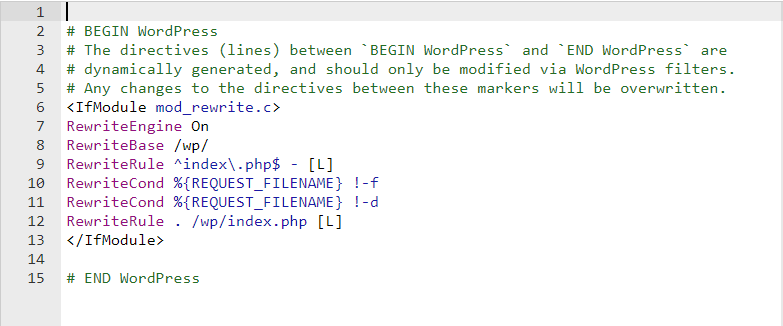
Below is the official default WordPress .htaccess code.
# BEGIN WordPress
<IfModule mod_rewrite.c>
RewriteEngine On
RewriteRule .* - [E=HTTP_AUTHORIZATION:%{HTTP:Authorization}]
RewriteBase /
RewriteRule ^index\.php$ - [L]
RewriteCond %{REQUEST_FILENAME} !-f
RewriteCond %{REQUEST_FILENAME} !-d
RewriteRule . /index.php [L]
</IfModule>
# END WordPress
For many websites, this is all that is required.
If your website is installed inside a subfolder, the RewriteBase and RewriteRule lines may be slightly different.
How to Restore the WordPress Default htaccess File
If your .htaccess file becomes corrupted or deleted, you can restore it in several ways.
Method 1: Save Permalinks
This is the easiest method.
- Log in to WordPress Admin.
- Go to Settings → Permalinks.
- Click Save Changes.
WordPress automatically regenerates the default .htaccess file if Apache has write permission.
Method 2: Create It Manually
If WordPress cannot create it automatically:
- Open File Manager.
- Navigate to your WordPress root folder.
- Create a file named:
.htaccess- Paste the default code.
- Save the file.
Method 3: Restore via SSH
Using SSH:
nano .htaccessPaste the default WordPress code.
Save using:
CTRL + O
CTRL + X
How to Reset the WordPress htaccess File
Sometimes additional plugins insert unwanted rules into the file.
To reset it:
- Delete all custom rules.
- Keep only the default WordPress code.
- Save the file.
- Visit Settings → Permalinks.
- Click Save Changes.
This regenerates clean rewrite rules.
Common Problems Caused by a Broken htaccess File
A damaged .htaccess file can cause many problems.
These include:
- 404 errors
- 500 Internal Server Error
- White Screen of Death
- Redirect loops
- Broken permalinks
- Login page not loading
- Admin dashboard inaccessible
- Images returning 403 errors
In many cases, replacing the file with the WordPress Default htaccess file fixes these issues immediately.
How to Edit the htaccess File Safely
Before editing:
- Create a backup.
- Download the original file.
- Test changes one at a time.
- Clear website cache afterward.
Avoid editing multiple rules simultaneously.
Can Plugins Modify the htaccess File?
Yes.
Many WordPress plugins automatically add rules.
Examples include:
- Security plugins
- Cache plugins
- Redirect plugins
- Firewall plugins
- Backup plugins
- Image optimization plugins
Never remove plugin-generated rules unless you understand their purpose.
Difference Between Default and Custom htaccess Files
| Default htaccess | Custom htaccess |
|---|---|
| Only WordPress rewrite rules | Includes extra security rules |
| Automatically generated | Manually edited |
| Supports permalinks | Adds redirects, caching, blocking, compression |
| Easy to restore | Requires manual maintenance |
Apache vs Nginx
The .htaccess file only works on Apache servers.
If your hosting uses Nginx, these rules will not function.
Instead, similar rewrite rules must be added to the Nginx configuration file.
Should You Delete the htaccess File?
Only if you’re troubleshooting.
Deleting it temporarily is safe because WordPress can regenerate it.
However:
- Always create a backup.
- Regenerate it immediately.
- Verify that permalinks still work.
Best Practices
To keep your .htaccess file healthy:
- Back it up before editing.
- Use only trusted plugins.
- Avoid duplicate redirect rules.
- Remove unused plugin rules.
- Check file permissions.
- Test your website after every modification.
Frequently Asked Questions
What is the default WordPress htaccess file?
It is the default Apache rewrite configuration that enables WordPress permalinks and URL routing.
Can I recreate a missing .htaccess file?
Yes. WordPress can recreate it automatically from Settings → Permalinks, or you can create it manually.
Why is my .htaccess file missing?
Some hosting providers don’t create it until permalinks are enabled. Hidden files may also be disabled in your file manager.
Does every WordPress website have an .htaccess file?
Only websites running on Apache servers use .htaccess. Nginx servers use different configuration files.
Can a bad .htaccess file crash my website?
Yes. Even one incorrect line can cause a 500 Internal Server Error or redirect loop.
Is it safe to edit the .htaccess file?
Yes, but always create a backup before making changes.
Conclusion
The WordPress Default htaccess file is one of the most important configuration files in any WordPress website running on Apache. It controls permalink functionality, URL rewriting, and many server-level behaviors that keep your website running correctly.
If your website starts showing 404 errors, redirect problems, or server errors, restoring the default .htaccess file is often the fastest solution. Always keep a backup before making changes, edit carefully, and let WordPress regenerate the file whenever possible.
External Resources
| Resource | Purpose |
|---|---|
| https://wordpress.org/support/article/htaccess/ | Official WordPress guide to .htaccess |
| https://httpd.apache.org/docs/ | Apache HTTP Server documentation |
| https://developer.wordpress.org/ | WordPress developer documentation |