Skip to content
Learn how to fix the “Autoloaded options could affect performance” Site Health warning using phpMyAdmin and a simple SQL query.
Autoloaded Options Could Affect Performance
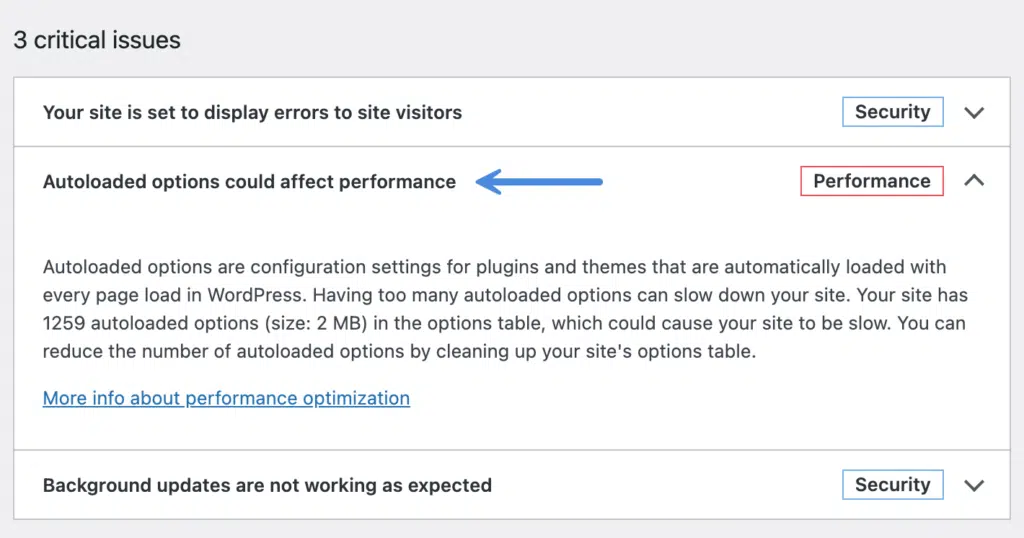
If your WordPress Site Health page displays the warning “Autoloaded options could affect performance”, it usually means your website is loading more data into memory than necessary on every page request. Over time, plugins, themes, and other WordPress tools can add large amounts of autoloaded data, which may slow down your website.
The good news is that you can easily identify the largest autoloaded options using phpMyAdmin and a simple SQL query. In this guide, you’ll learn exactly how to locate the problem and determine which options are consuming the most memory.
What Does “Autoloaded Options Could Affect Performance” Mean?
Every time someone visits your WordPress website, WordPress loads all database options marked as autoload = yes.
This behavior improves speed for frequently used settings because WordPress doesn’t need to query the database repeatedly. However, if too many large options are marked for autoload, WordPress must load a significant amount of unnecessary data into memory on every request.
As a result, you may experience:
- Slower page loading
- Increased server memory usage
- Higher CPU utilization
- Reduced hosting performance
- WordPress Site Health warning
The warning doesn’t always indicate a serious issue, but it’s a strong indication that your database should be reviewed.
Common Causes
Several factors can create oversized autoloaded options.
Some of the most common include:
- Cache plugins storing large datasets
- Backup plugins saving logs
- Security plugins
- Translation plugins
- WooCommerce sessions
- Theme framework settings
- Plugins that were removed but left database entries
- Custom plugins
Before Making Any Changes
Always create a complete database backup before editing your WordPress database.
Although the SQL query used in this tutorial is completely safe because it only reads data, any future cleanup should always begin with a backup.
Step 1: Open phpMyAdmin
Log in to your hosting control panel.
Depending on your hosting provider, this may be:
- cPanel
- Plesk
- DirectAdmin
- ISPConfig
Open phpMyAdmin.
Step 2: Select Your WordPress Database
On the left sidebar, click the database used by your WordPress installation.
If you have multiple websites, verify the correct database from your wp-config.php file.
Step 3: Open the SQL Tab
Click the SQL tab at the top of phpMyAdmin.
You’ll see a query editor where you can execute SQL commands.
Step 4: Run the SQL Query
Copy and paste the following SQL command:
SELECT option_name,
       LENGTH(option_value) AS option_value_length
FROM wp_options
WHERE autoload='yes' ORDER BY option_value_length DESC;
Then click Go.
Step 5: Review the Largest Autoloaded Options
After running the SQL query, you’ll see the largest autoloaded options at the top of the results.
These entries consume the most memory during every page request, so they are the first ones you should investigate.
How to Change an Autoload Option
If you identify an option that is no longer needed (for example, data left behind by a plugin you have already removed), you can change its autoload setting.
- One by one edit the top options in phpMyAdmin.
- Scroll down until you see the autoload field.
- If its value is yes, change it to no.
- Click Save.
Understanding the SQL Query
Let’s break down what each part does.
SELECT option_nameShows the name of each WordPress option.
LENGTH(option_value)Calculates the size of the stored value in bytes.
WHERE autoload='yes'Filters only options that WordPress loads automatically on every request.
ORDER BY option_value_length DESCSorts results from the largest option to the smallest, making it easy to identify the biggest performance offenders.
Example Output
After running the query, you might see something similar to this:
| option_name | option_value_length |
|---|---|
| _transient_dirsize_cache | 523412 |
| widget_elementor | 284193 |
| rewrite_rules | 163028 |
| rank_math_options | 92451 |
| elementor_css | 65183 |
The options at the top consume the most memory during every page load.
How to Identify Problematic Options
Not every large option is a problem.
Some large options are completely normal.
Examples include:
However, you should investigate options that look like:
- Old plugin data
- Expired transients
- Temporary cache
- Debug logs
- Plugin leftovers
- Unknown custom plugin entries
If you’re unsure what an option belongs to, search its name before deleting or modifying anything.
Should You Delete Large Autoloaded Options?
No—not immediately.
This SQL query is intended to identify large autoloaded options, not remove them.
Deleting the wrong database option can break your WordPress website, theme, or plugins.
Instead:
- Identify which plugin created the option.
- Check whether the plugin provides a cleanup tool.
- Remove unused plugins properly.
- Delete only entries you fully understand.
- Test your website after any changes.
Additional Ways to Reduce Autoload Size
Besides reviewing database options, you can also improve performance by:
- Removing inactive plugins
- Deleting unused themes
- Cleaning expired transients
- Updating plugins regularly
- Optimizing your database
- Using reliable caching
- Removing orphaned plugin data
- Keeping WordPress updated
These maintenance tasks help reduce unnecessary database overhead over time.
Why This Method Is Safe
The SQL query shown in this guide only retrieves information from your database.
It does not:
- Delete data
- Modify records
- Change autoload settings
- Update any database values
This makes it an excellent first step when diagnosing the Autoloaded options could affect performance Site Health warning.
Frequently Asked Questions
Is this SQL query safe?
Yes. It only reads data from the database and doesn’t make any changes.
Why does WordPress autoload options?
Autoloading allows WordPress to quickly access frequently used settings without performing additional database queries.
What size is considered too large?
There is no fixed limit, but if the total autoloaded data exceeds several hundred kilobytes—or especially 1 MB or more—it is worth investigating, particularly on shared hosting.
Can this improve website speed?
Yes. Reducing unnecessary autoloaded data can lower memory usage and improve overall performance, especially on websites with many plugins.
Do I need a plugin for this?
No. You can inspect autoloaded options directly through phpMyAdmin using the SQL query provided above.
Conclusion
The Autoloaded options could affect performance warning is a useful reminder that your WordPress database may contain oversized autoloaded entries. Rather than guessing which plugin is responsible, you can quickly identify the largest autoloaded options using phpMyAdmin and the SQL query shown in this guide.
Because the query is read-only, it’s a safe way to audit your database before making any cleanup decisions. Once you’ve identified unusually large or obsolete entries, you can investigate them further and remove only those that are no longer needed. Regular database maintenance helps keep your WordPress site fast, efficient, and free from unnecessary performance bottlenecks.
External Resources
| Resource | Purpose |
|---|---|
| https://wordpress.org/documentation/ | Official WordPress documentation |
| https://developer.wordpress.org/apis/options/ | WordPress Options API |
| https://www.phpmyadmin.net/ | phpMyAdmin official website |
| https://developer.wordpress.org/advanced-administration/performance/ |