Skip to content
Learn Malware Removal from Hacked WordPress Website with step-by-step instructions to clean malware, secure your site, and prevent future attacks.
Malware Removal from Hacked WordPress Website
A hacked WordPress website can damage your business, expose customer data, reduce search engine rankings, and even cause Google to blacklist your domain. If your website has been infected with malware, taking immediate action is essential. This complete guide explains Malware Removal from Hacked WordPress Website using proven methods that help restore your website safely while preventing future attacks.
Whether your website displays spam pages, redirects visitors, injects malicious JavaScript, or has unknown administrator accounts, following the correct malware removal process can bring your WordPress site back to a secure state.
What Is WordPress Malware?
WordPress malware refers to malicious code that attackers insert into your website. The malware may steal data, redirect visitors, display unwanted advertisements, send spam emails, or infect website visitors.
Common malware includes:
- Backdoors
- SEO spam injections
- Malicious redirects
- Cryptocurrency miners
- Phishing pages
- Hidden admin users
- Malicious PHP scripts
- JavaScript injections
Signs Your WordPress Website Has Been Hacked
Several warning signs indicate malware infection.
- Unexpected redirects
- Google Safe Browsing warning
- Spam pages indexed in Google
- Slow website performance
- Unknown administrator accounts
- Modified WordPress files
- Hosting suspension
- Suspicious scheduled tasks
- Large increase in server resource usage
- Website displaying pharmaceutical or gambling content
Immediate Steps Before Malware Removal
Before cleaning your website, perform these important tasks.
Put the website into maintenance mode to protect visitors.
Create a complete backup of both files and the database. Even infected backups can help recover missing content if necessary.
Change all passwords, including:
- WordPress admin
- Hosting account
- FTP
- SSH
- Database
- Control panel
- Email accounts
Enable two-factor authentication wherever possible.
Scan the Website for Malware
Start by identifying infected files.
Useful malware scanning tools include:
- Wordfence Security
- Sucuri Scanner
- MalCare
- Solid Security (formerly iThemes Security)
- VirusTotal (for suspicious files)
- Hosting malware scanners
These tools help locate infected files, modified scripts, suspicious plugins, and hidden malware.
Remove Suspicious Plugins and Themes
Attackers often exploit vulnerable or nulled plugins.
Check for:
- Inactive unknown plugins
- Pirated premium themes
- Unused plugins
- Plugins installed without your knowledge
Delete any suspicious files immediately.
Always download plugins and themes from trusted developers or the official WordPress repository.
Replace Core WordPress Files
Core WordPress files should never be modified.
Download the latest version of WordPress and replace:
- wp-admin
- wp-includes
Avoid overwriting:
- wp-content
- wp-config.php
Replacing core files removes many common malware injections.
Inspect wp-config.php
Open wp-config.php and look for:
- Obfuscated PHP code
- Base64 encoded strings
- eval() functions
- gzuncompress()
- str_rot13()
- Long unreadable variables
Only keep legitimate WordPress configuration settings.
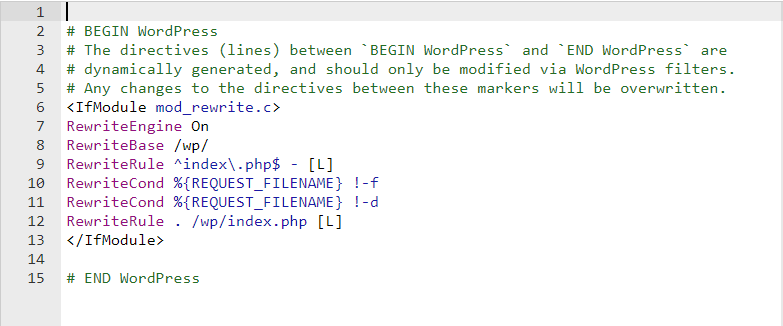
Check the .htaccess File
Hackers frequently modify .htaccess.
Look for:
- Redirect rules
- Suspicious RewriteRules
- Unknown PHP execution rules
- External redirects
Restore the default WordPress .htaccess file if necessary.
Inspect Uploads Folder
Attackers commonly hide malware inside:
/wp-content/uploads/
Look for:
- PHP files
- Executable scripts
- Randomly named folders
- Recently modified files
Normally, the uploads folder should mainly contain images, PDFs, videos, and media files.
Clean the Database
Malicious code may also exist inside the database.
Check:
- wp_posts
- wp_options
- wp_users
- wp_usermeta
Look for:
- Hidden administrator accounts
- Spam posts
- Injected JavaScript
- iframe tags
- Malicious links
- Encoded content
Delete unwanted entries carefully.
Search for Dangerous PHP Functions
Search the website for suspicious functions including:
eval(
base64_decode(
gzinflate(
shell_exec(
system(
assert(
preg_replace(
create_function(
str_rot13(
Although some legitimate plugins may use certain functions, they should always be reviewed carefully.
Check Recently Modified Files
Sorting files by modification date often reveals malware.
Review files modified shortly before:
- Website problems started
- Google warnings appeared
- Suspicious redirects began
Unknown recently modified files deserve careful inspection.
Remove Unauthorized Users
Visit:
Users → All Users
Delete:
- Unknown administrators
- Fake editors
- Suspicious subscribers created in bulk
Verify all administrator accounts belong to trusted users.
Update Everything
After cleaning:
- Update WordPress
- Update plugins
- Update themes
- Update PHP
- Remove unused software
Running outdated software is one of the biggest reasons websites become infected.
Reset File Permissions
Recommended permissions:
- Folders: 755
- Files: 644
- wp-config.php: 600 or 640 (depending on hosting)
Avoid giving files 777 permissions.
Install a Security Plugin
A security plugin provides continuous protection.
Recommended features include:
- Malware scanning
- Firewall
- Login protection
- File change detection
- Country blocking
- Rate limiting
- Two-factor authentication
Request Google Review
If your website was blacklisted:
- Clean all malware.
- Verify ownership in Google Search Console.
- Request a Security Review.
- Wait for Google to remove warnings after verification.
How to Prevent Future WordPress Malware
Follow these best practices.
- Use strong passwords
- Enable two-factor authentication
- Install a Web Application Firewall (WAF)
- Keep WordPress updated
- Delete unused plugins
- Delete unused themes
- Use quality hosting
- Perform daily backups
- Monitor file changes
- Use SSL certificates
- Limit login attempts
- Disable file editing from the dashboard
- Regularly scan for malware
Common Causes of WordPress Malware
Most infections occur because of:
- Outdated plugins
- Outdated themes
- Outdated WordPress core
- Weak passwords
- Nulled plugins
- Shared hosting vulnerabilities
- Compromised administrator accounts
- Poor file permissions
- Insecure FTP credentials
Should You Remove Malware Yourself or Hire an Expert?
If you have server administration experience, you may successfully perform Malware Removal from Hacked WordPress Website yourself using security scanners, manual file inspection, and database cleanup.
However, if your website contains valuable customer data, eCommerce functionality, or complex custom development, hiring a professional malware removal expert is often the safer choice. Experts can identify hidden backdoors, eliminate reinfection sources, harden the server, and verify that the website is completely clean before bringing it back online.
Frequently Asked Questions
Can malware return after cleaning a WordPress website?
Yes. If hidden backdoors remain or vulnerable plugins are not updated, attackers can reinfect the website.
Will reinstalling WordPress remove malware?
Replacing core files helps, but malware may still exist inside plugins, themes, uploads, or the database.
How long does malware removal take?
Simple infections may take one to two hours, while heavily infected websites can require several hours or even days.
Can Google blacklist a hacked WordPress website?
Yes. Google may display security warnings until the malware is removed and the website passes a security review.
Is a backup enough to restore a hacked website?
Only if the backup was created before the infection occurred. Otherwise, restoring an infected backup may bring the malware back.
Conclusion
Malware Removal from Hacked WordPress Website requires more than simply deleting suspicious files. A complete cleanup involves scanning the website, replacing compromised core files, inspecting plugins and themes, cleaning the database, removing hidden backdoors, updating all software, and strengthening security settings. By following the steps in this guide and adopting strong security practices, you can recover your WordPress website, protect your visitors, and significantly reduce the risk of future malware infections.
Recommended External Resources
| Resource | Purpose |
|---|---|
| https://wordpress.org/support/article/hardening-wordpress/ | Official WordPress security guide |
| https://developers.google.com/search/docs/monitor-debug/security | Google Security Issues documentation |
| https://www.wordfence.com/learn/ | WordPress security learning resources |
| https://sitecheck.sucuri.net/ | Free website malware scanner |
| https://www.virustotal.com/ | Scan suspicious files and URLs |